
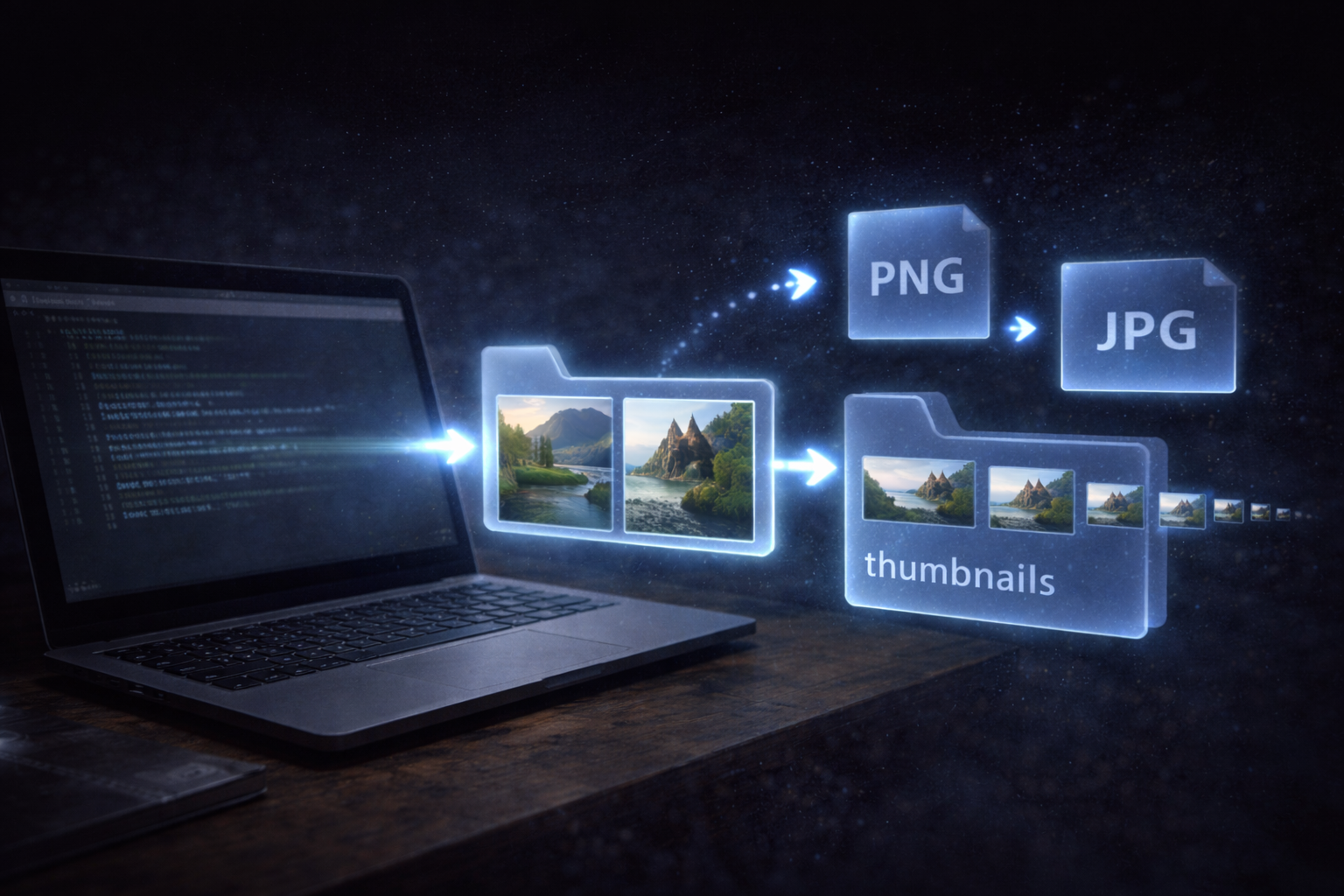
Why ImageMagick is Useful for Artists
Artists and designers often work with large numbers of images.
For example:
- exporting artwork for the web
- preparing images for online stores
- generating thumbnails
- compressing images for faster loading
Editing images one by one in software like Photoshop or Krita can take a lot of time.
ImageMagick is a command-line tool that allows you to process many images at once using simple commands.
With a single command you can resize, convert, or compress an entire folder of images in seconds.
Installing ImageMagick
Windows
Download ImageMagick from the official website:
https://imagemagick.org/script/download.php
During installation enable:
- Install legacy utilities
- Add application directory to system path
After installation verify it works by running:
magick -versionmacOS
Install ImageMagick using Homebrew:
brew install imagemagickCheck installation:
Check installation:Linux
Most Linux distributions include ImageMagick in their repositories.
Ubuntu / Debian:
sudo apt update
sudo apt install imagemagick
Batch Resize Images
This command will resize all PNG images in the folder so that the width becomes certain pixels wide while maintaining the original aspect ratio.
This is extremely useful when preparing artwork for:
- websites
- portfolios
- online stores
- blogs
Sometimes you want to reduce large images but avoid enlarging small ones.
In this example I am trying to keep the image width to maximum of 1200px.
You can do this using:
magick mogrify -resize 1200\> *.*Convert Image Formats
ImageMagick can also convert many image formats.
For example, converting PNG images to JPG:
magick mogrify -format jpg *.pngThis command creates JPG versions of all PNG images in the folder.
Format conversion is useful when:
- optimizing images for websites
- preparing files for printing
Explore More ImageMagick Features
ImageMagick can do much more than resizing and converting images.
It can also:
- crop images
- optimize file sizes
- add watermarks
- generate thumbnails
- remove metadata
If you want to explore more possibilities, the official documentation provides a complete list of commands and examples.
https://imagemagick.org/script/command-line-tools.php

